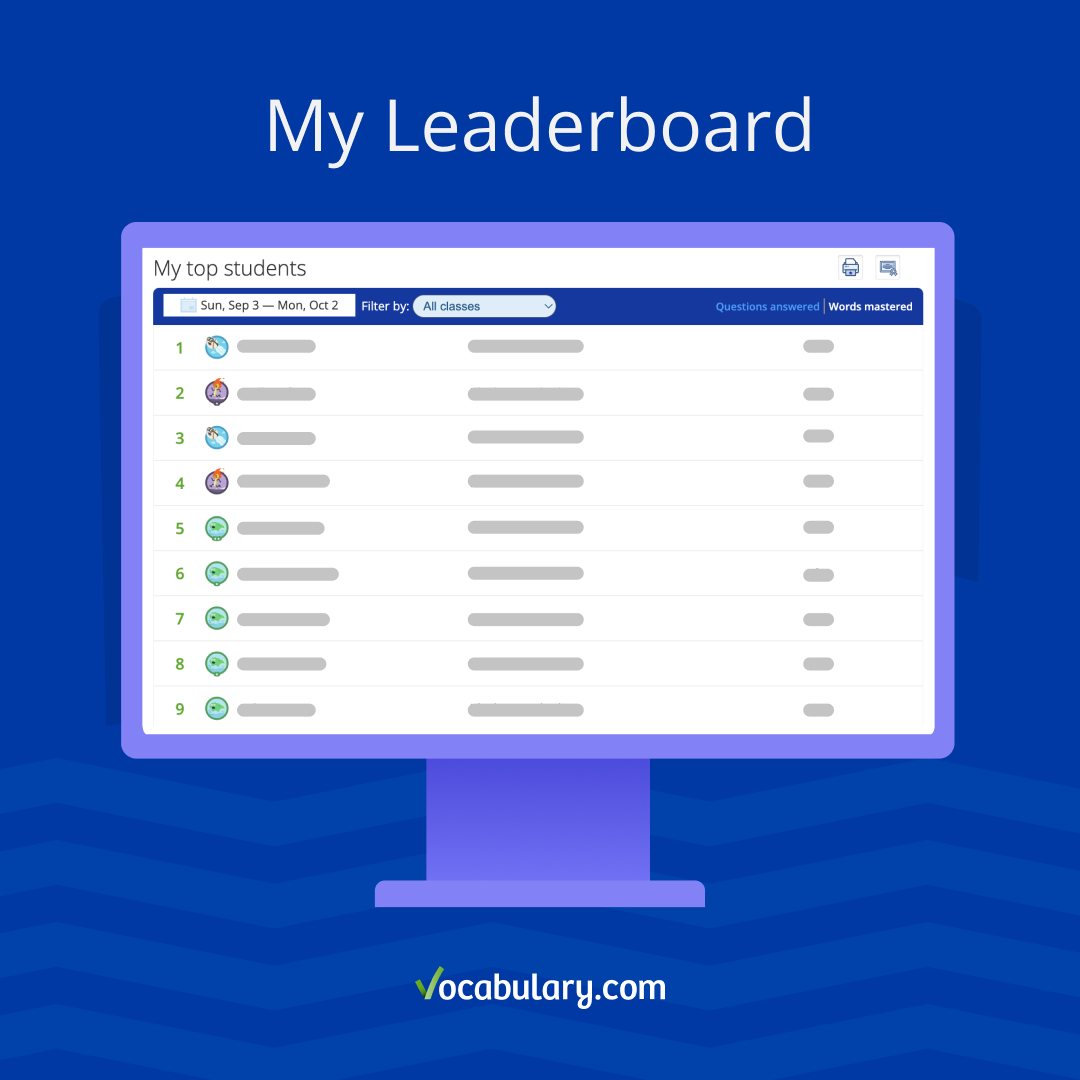
Track, compare, and reward the progress of your students using personalized insight into all classes.
Vocabulary.com has helped over 2 million learners master new words with a better way to teach vocabulary through gamification and friendly competition!
Our newest feature, My Leaderboard, makes it easy for teachers to host friendly in-class competitions and celebrate word learning successes! View data by students or classes for an easy way to monitor student activity and compare how students are progressing in their word learning.
More than just displaying student data, My Leaderboard allows educators to see scores side by side, making it easy to host competitions within classes or schools! This feature makes it easy to visualize progress, host fun competitions, and incentivize word learning using printable certificates!
Visualize student progress
My Leaderboard provides real-time graphs to clearly visualize student activity and progress. At a glance, teachers can see the number of questions answered right and wrong, words mastered, and time spent on Vocabulary.com by each student. Teachers gain valuable insight into which students are successfully working independently on word learning and which may need more word learning support.
Host friendly competition
Students love competition, especially amongst their own peers! My Leaderboard makes it especially easy to host a friendly competition within your classes. Separate students by classes, by teams, or individually, and set the goal of the competition. Who will master the most words or answer the most questions? Have them compete for a specified time frame to motivate them to win prizes or bragging rights!
Incentivize word learning
Show the top-performing students recognition with new printable materials that celebrate their vocabulary victories! Instantly print out personalized certificates or Top 10 leaderboards customized with just the click of a button.
We also have other printable rewards like editable Vocabulary.com coupons that students can redeem for prizes like a pass to skip a homework assignment or a pass on answering a question during class - it’s up to you!
How to use My Leaderboard
Check your My Leaderboard to see your students’ success! Educators can sign into Vocabulary.com and then go to My Classes from the hamburger menu.
- If you don’t have any active classes, click Create New Class to set up your classes
- If you have active classes, go to My Classes and click the “My Leaderboard” tab

Once you’re on My Leaderboard, you can adjust the following settings:
Date range: Click on the top left calendar icon to change the date range or to see the last 90, 30, or 7 days. Click “Apply” to save the changes.
Class selection: Next to the date range, there’s a “Filter by:” option to choose the class(es) you want to view.
Data selection: On the right side of the navigation bar, choose whether you want to see the data for the number of questions answered or words mastered.
- “Number of questions answered” tracks the number of questions students answered across all word learning activities
- “Number of words mastered” shows each student’s progress in word mastery
Printouts: Above the navigation bar, there are two icons in squares:
- The printer icon will download a list of your top 10 performing students during the selected date range
- The certificate icon will download personalized certificates with the names of your top 3 performing students
Are you ready to celebrate word learning wins in your class?